
Table of Contents
Demo URL: https://sinematik.pixaquant.com/
System Requirements #
- WordPress 6.0 or higher
- PHP 7.4 or higher
- MySQL 5.7 or MariaDB 10.3+
Installation #
Method 1: WordPress Admin Panel #
- Navigate to Appearance → Themes → Add New
- Click the Upload Theme button
- Select the
sinematik.zipfile and upload - Click Activate
Method 2: FTP Upload #
- Extract the
sinematik.zipfile - Upload the
sinematik/folder towp-content/themes/ - Go to Appearance → Themes in your WordPress admin
- Find Sinematik and click Activate
Initial Setup #
After activation, you will see a welcome notice with quick-start links:
- Customize Theme — Open the Customizer
- Setup Menus — Configure navigation menus
- Setup Widgets — Add widgets to sidebar and footer
- Install Plugins — Install recommended plugins
1. Install Recommended Plugins #
You will see a notification prompting you to install recommended plugins:
- WooCommerce (optional) — E-commerce support
- Elementor (optional) — Page builder
- Contact Form 7 (optional) — Alternative contact form
- One Click Demo Import (optional) — Demo content installation
2. Set Up a Static Homepage #
- Go to Pages → Add New and create a page called “Home” (template: Front Page)
- Go to Pages → Add New and create a page called “Blog”
- Go to Settings → Reading and select A static page
- Set “Home” as the Homepage and “Blog” as the Posts page
3. Assign Page Templates #
When editing each page, select the template from the Page Attributes panel on the right:
| Page | Template |
|---|---|
| Home | Front Page (automatic) |
| Services | Services |
| About Us | About Us |
| Contact | Contact |
4. Configure Menus #
- Go to Appearance → Menus
- Create a new menu and name it “Primary Menu”
- Add pages and arrange them
- Under Menu Settings, assign to “Primary Menu” and “Footer Menu” locations
5. Configure Footer Widgets #
- Go to Appearance → Customize → Sinematik Theme → Footer Settings
- Select your preferred column layout (2, 3, or 4 columns)
- Go to Appearance → Widgets and add widgets to each Footer Column
- Only columns with active widgets will be displayed
Demo Content Import #
- Install the One Click Demo Import plugin
- Go to Appearance → Demo Import
- Import the
demo-content/sinematik-demo.xmlfile - After import, go to Settings → Reading and set the static homepage
Demo
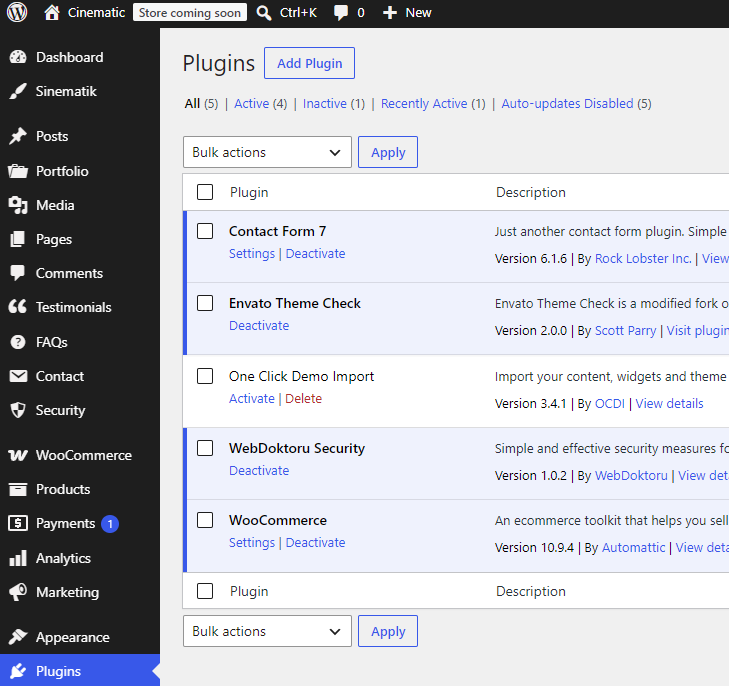
The screenshot shows the plugins that are currently active in the demo.


